30 pages
To-Do
The To-Do module holds a team’s work: lists with their own access rules, tasks with priority, due date, tags and assignees, and two ways to look at them — the list and the kanban board.
Discover the To-Do moduleEvery page in this topic
Guide1 min
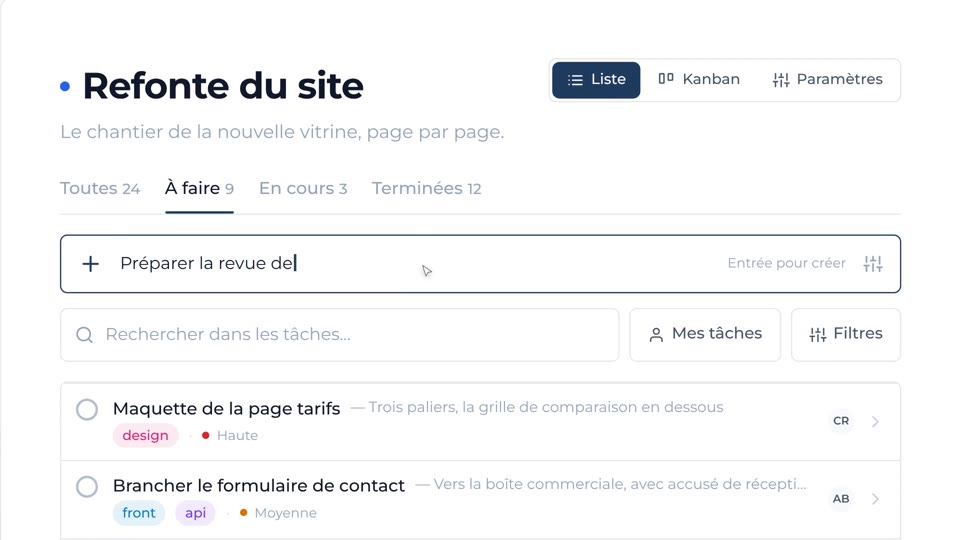
Create a task
A title in the quick-add bar, Enter, and it is written down.
Guide1 min
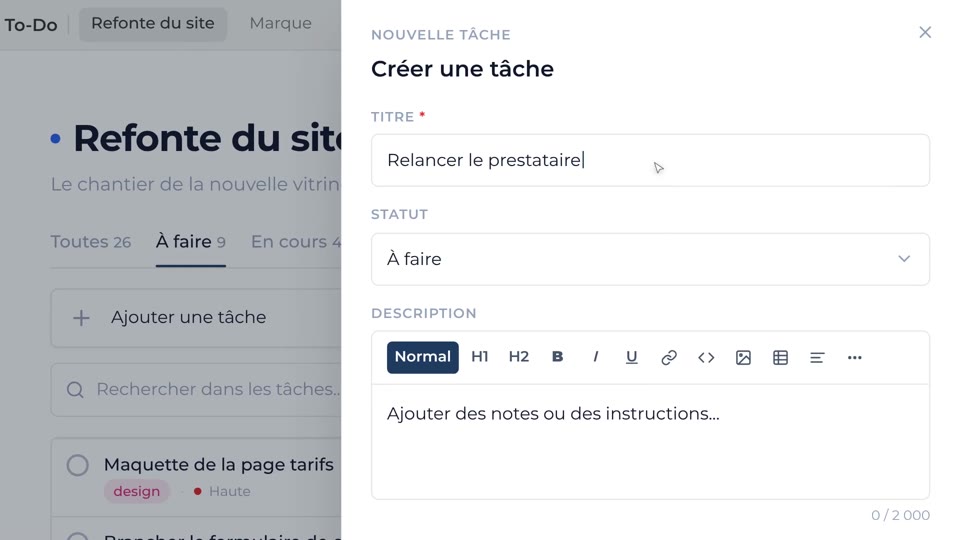
Create a detailed task
The full panel: description, priority, tags, due date, members.
Guide1 min
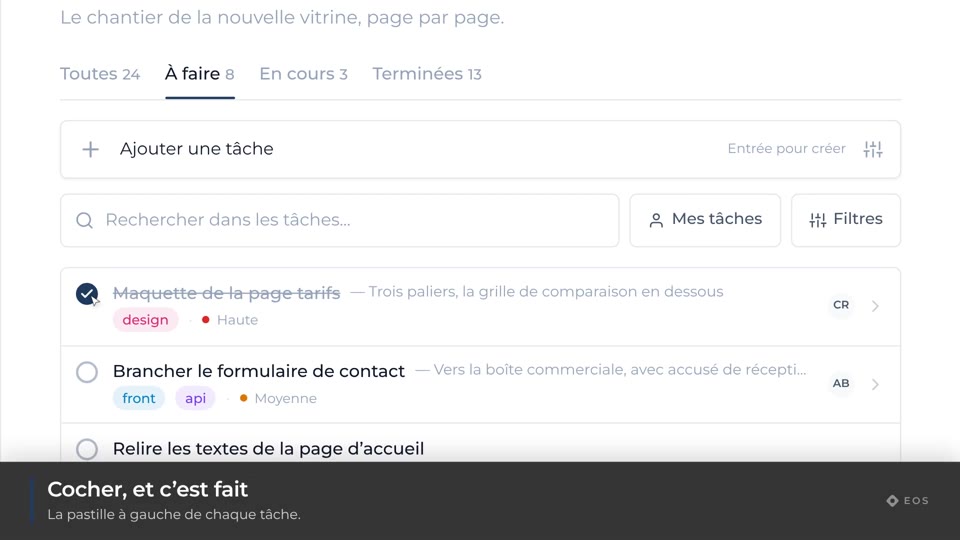
Complete a task
Tick a task, and what that changes in the tabs.
Guide1 min
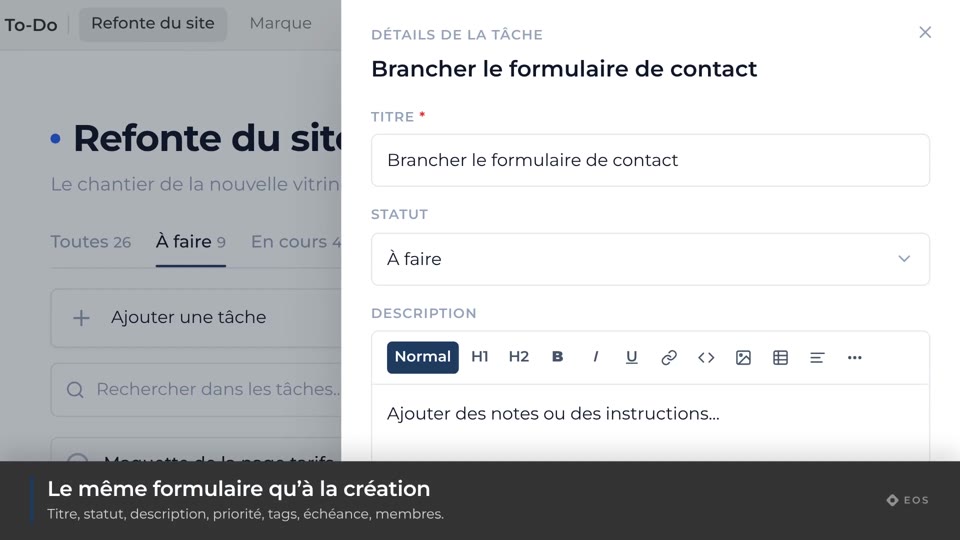
Open a task’s details
The side panel and everything it holds.
Guide1 min
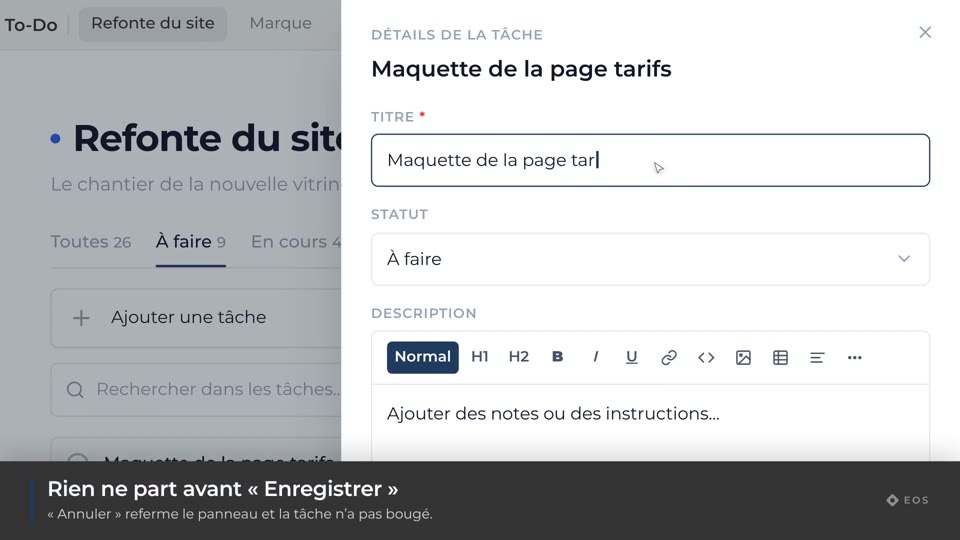
Rename a task
Change a task’s title from its panel.
Guide1 min
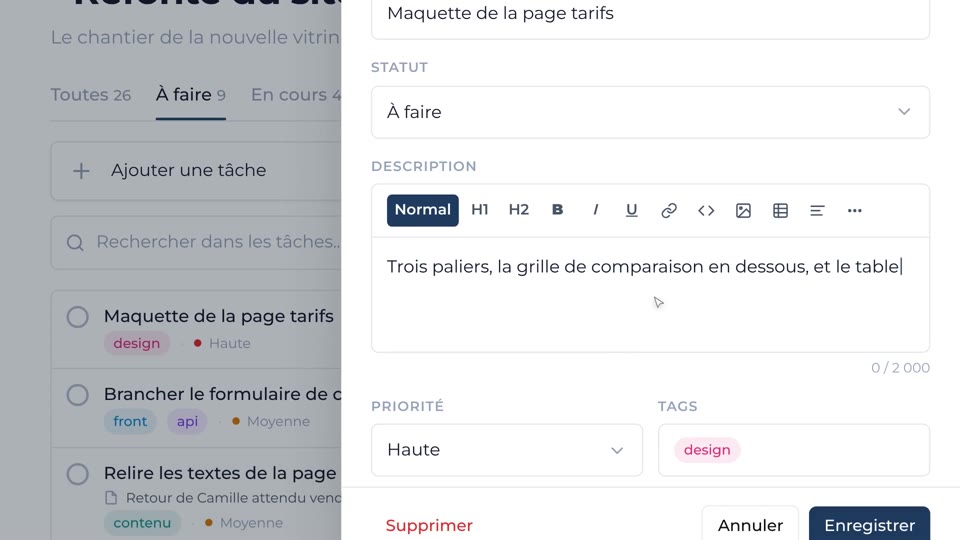
Write a description
The rich editor: headings, bold, lists, links.
Guide1 min
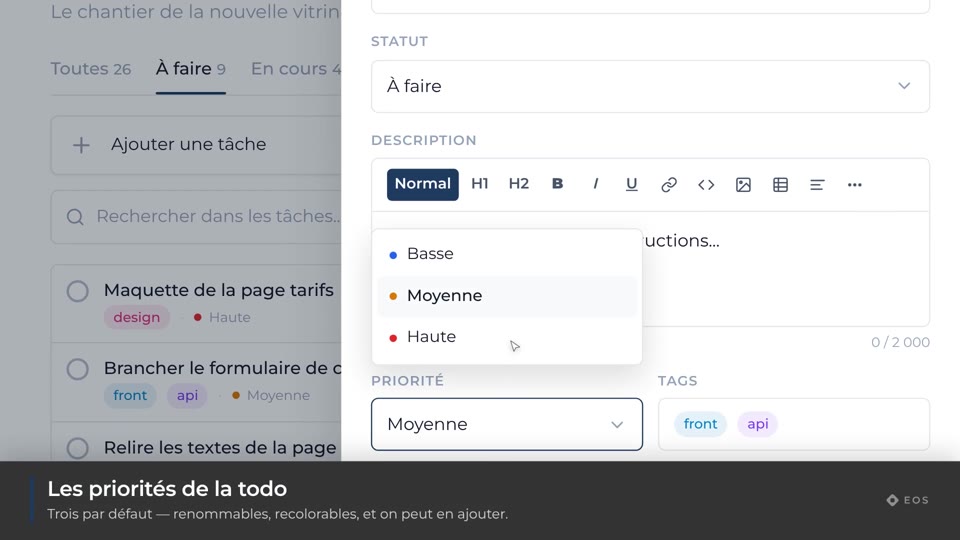
Change the priority
Low, medium, high — or your own list’s priorities.
Guide1 min
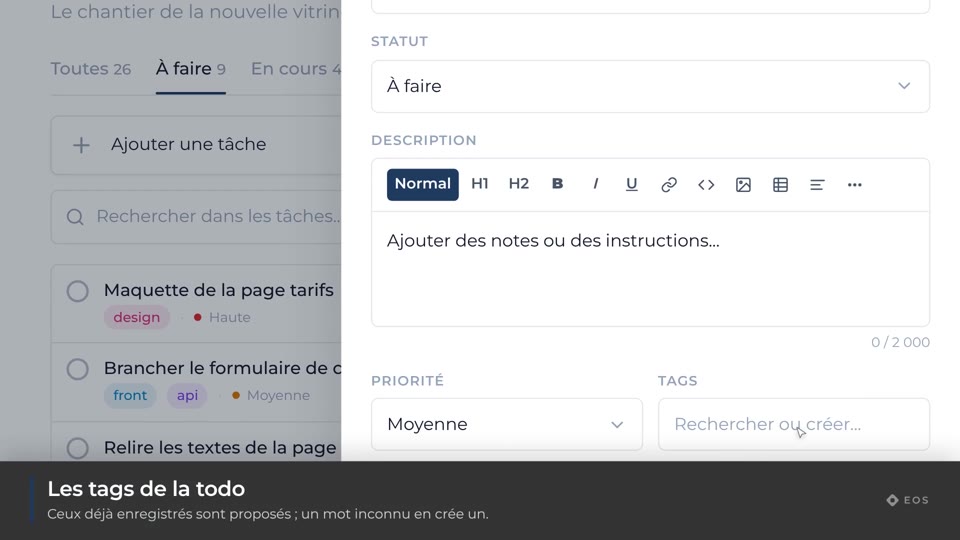
Add tags
Pick an existing tag, or create one on the spot.
Guide1 min
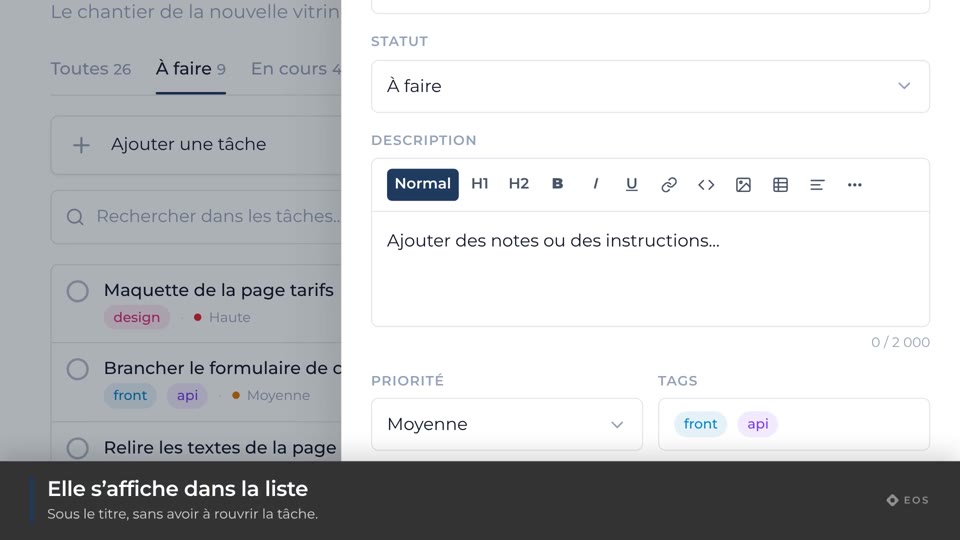
Add a note
The short annotation shown under the title in lists.
Guide1 min
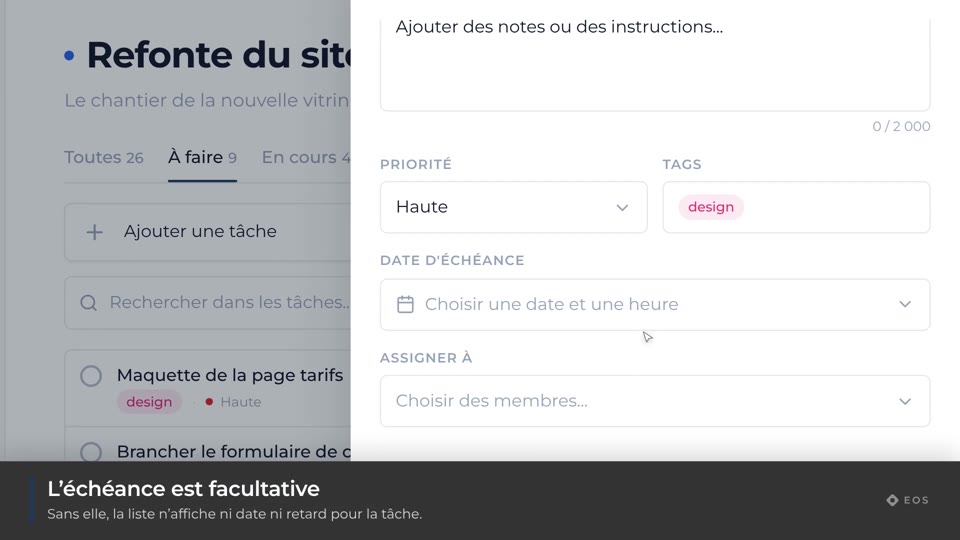
Set a due date
A date and a time, and the reminder that comes with it.
Guide1 min
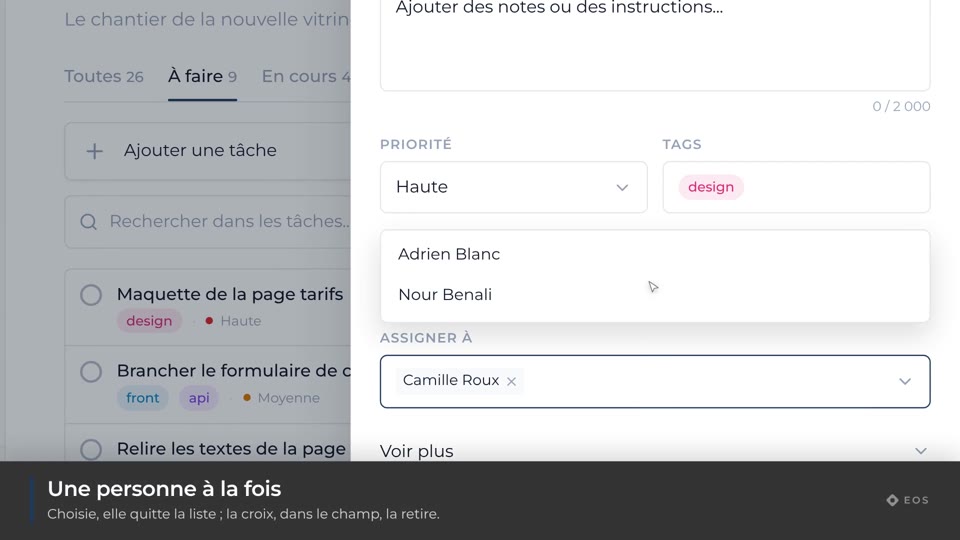
Assign a task
Hand a task to one member or several.
Guide1 min
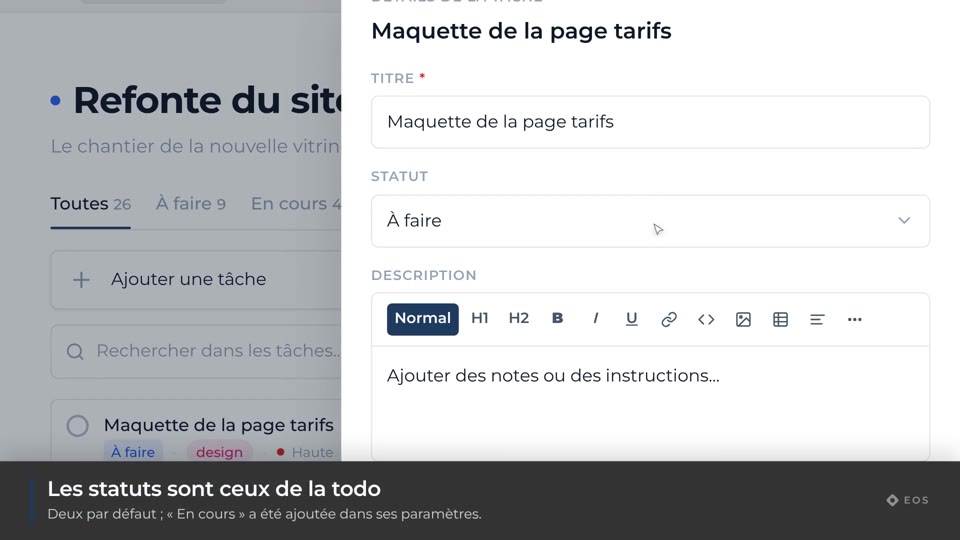
Change the status
Move a task from one status to the next.
Guide1 min
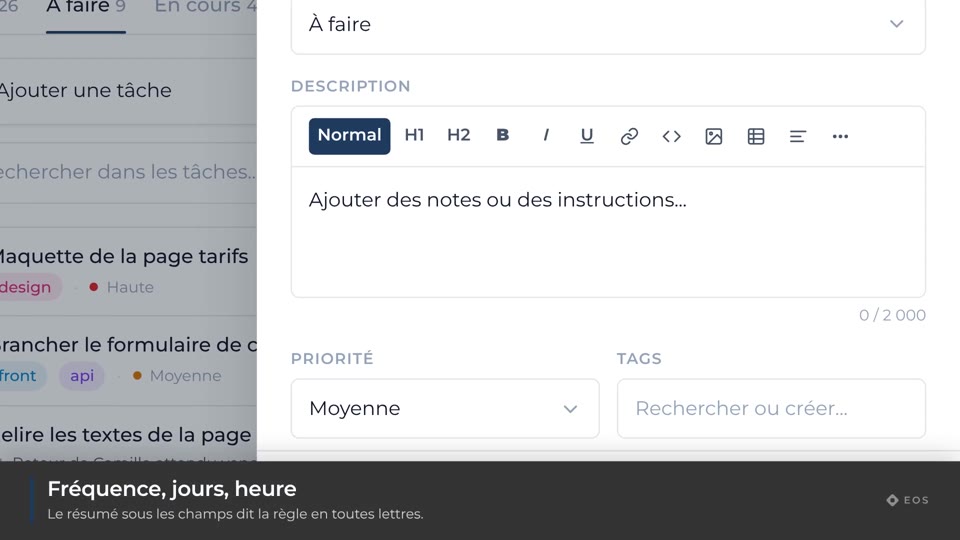
Create a recurring task
The task comes back on its own at every due date.
Guide1 min
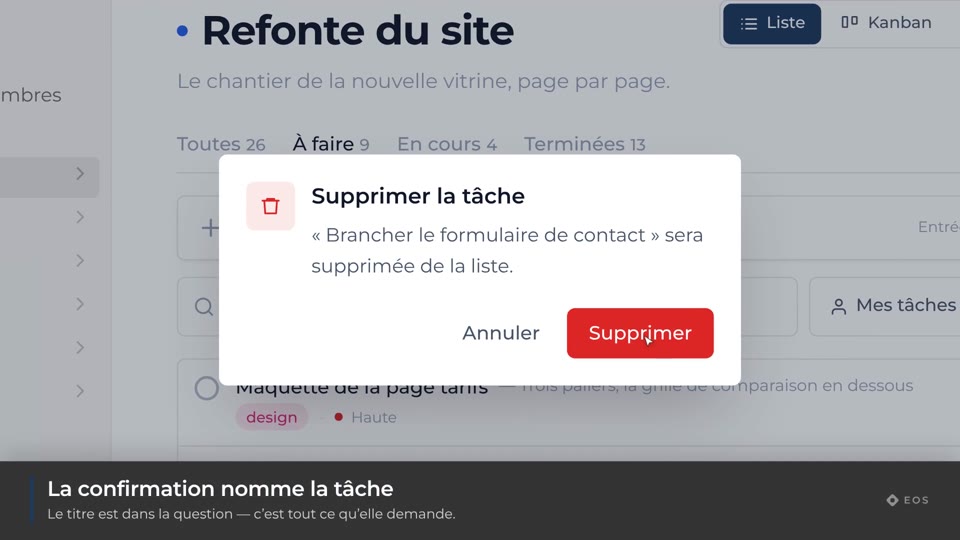
Delete a task
Take it off the list, and what the confirmation asks.
Guide1 min
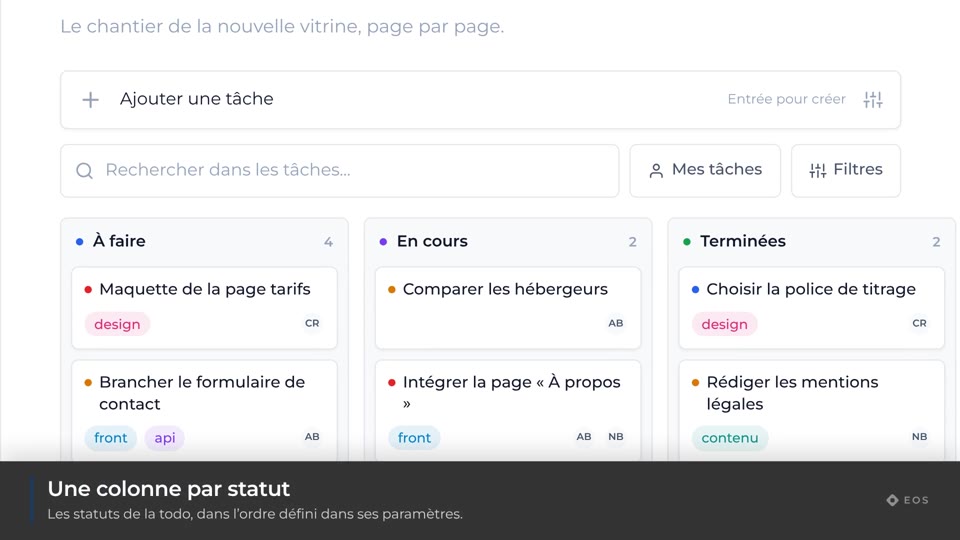
Open the kanban view
The same tasks in columns, one per status.
Guide1 min
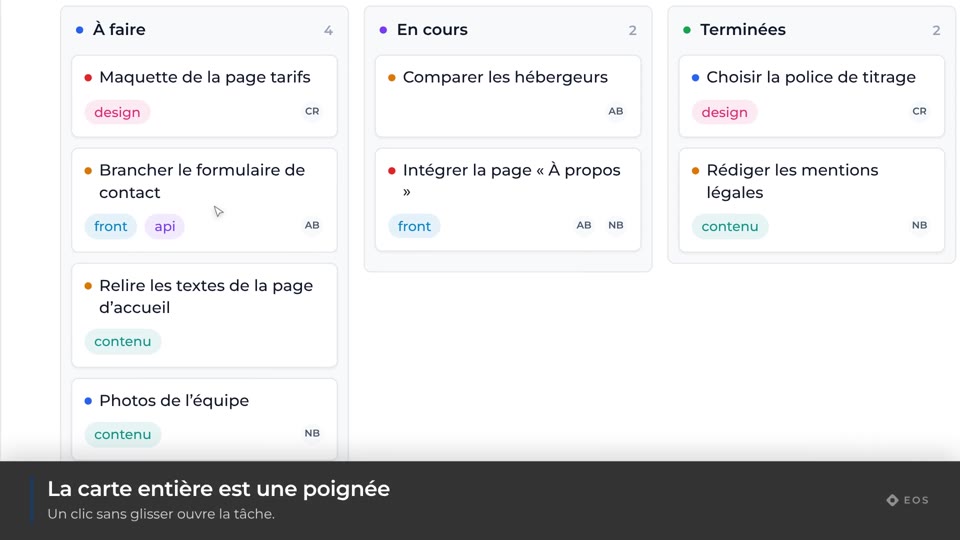
Move a card
Drag a card from one column to another to change its status.
Guide1 min
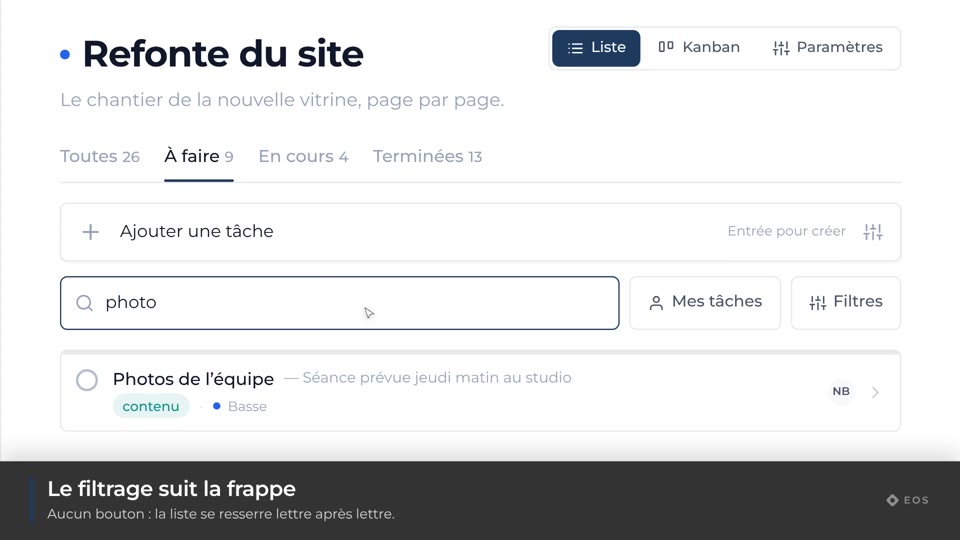
Search for a task
The search filters the list as you type.
Guide1 min
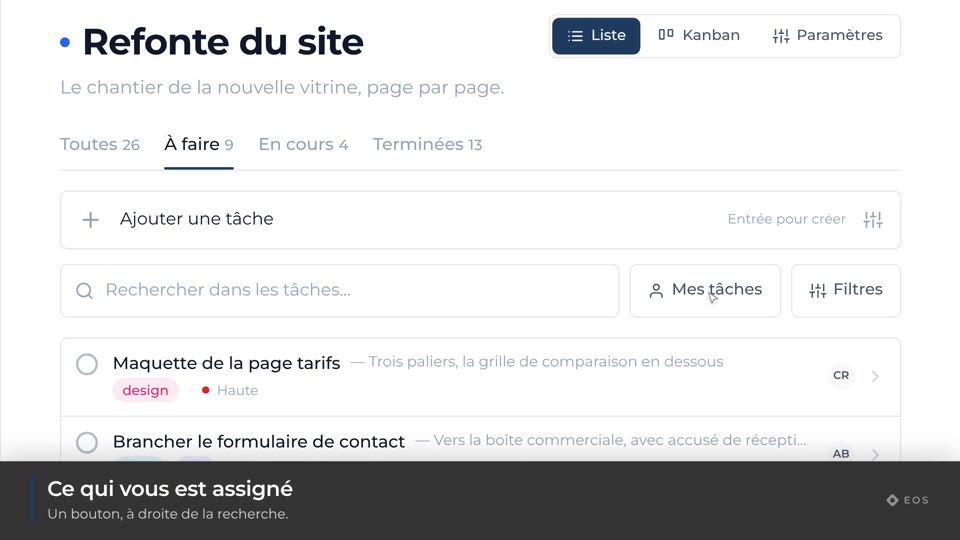
Show only my tasks
The “My tasks” button, and what it takes out of the list.
Guide1 min
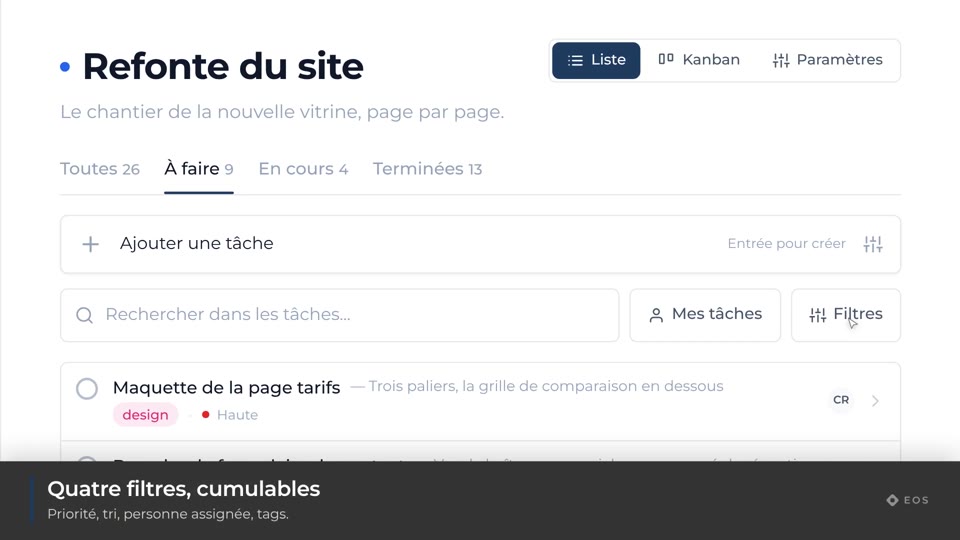
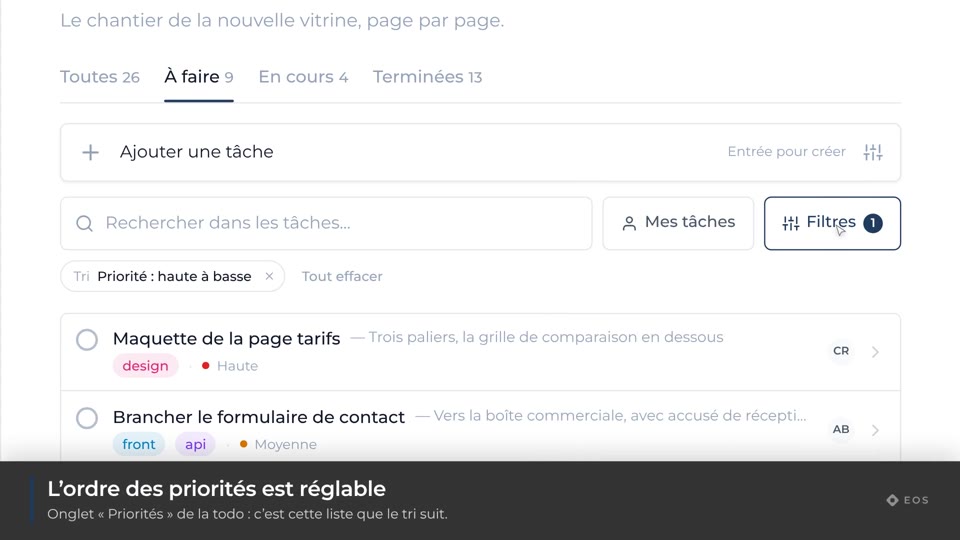
Filter tasks
Priority, assignee, tags — and the active-filter counter.
Guide1 min
Sort tasks
Newest, oldest, or by priority.
Guide1 min
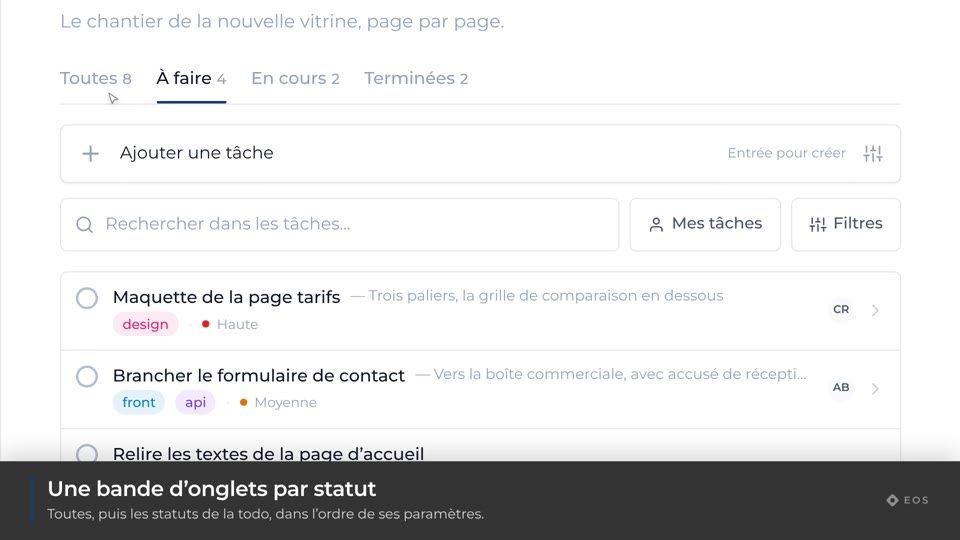
The status tabs
All, To do, In progress, Done — and their counters.
Guide1 min
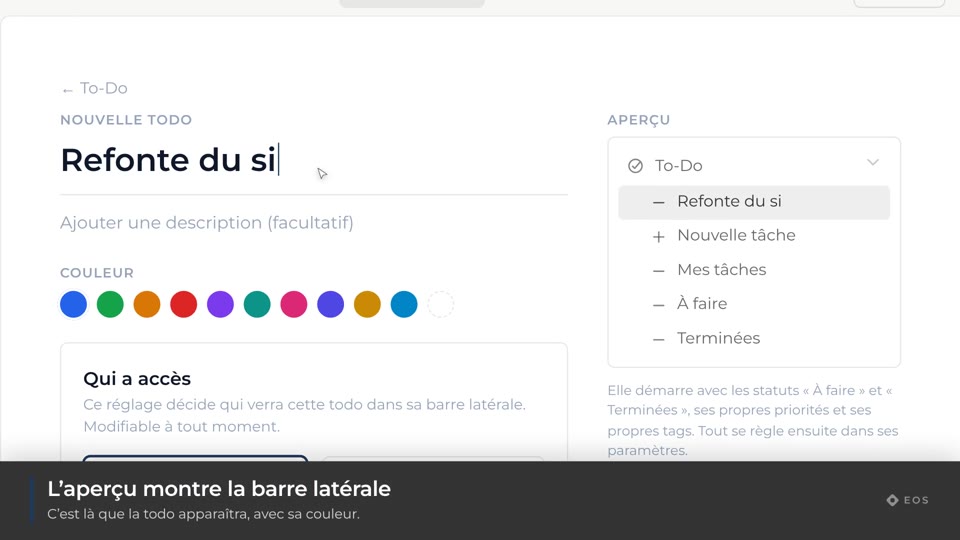
Create a list
One more list: its name, its description, who can reach it.
Guide1 min
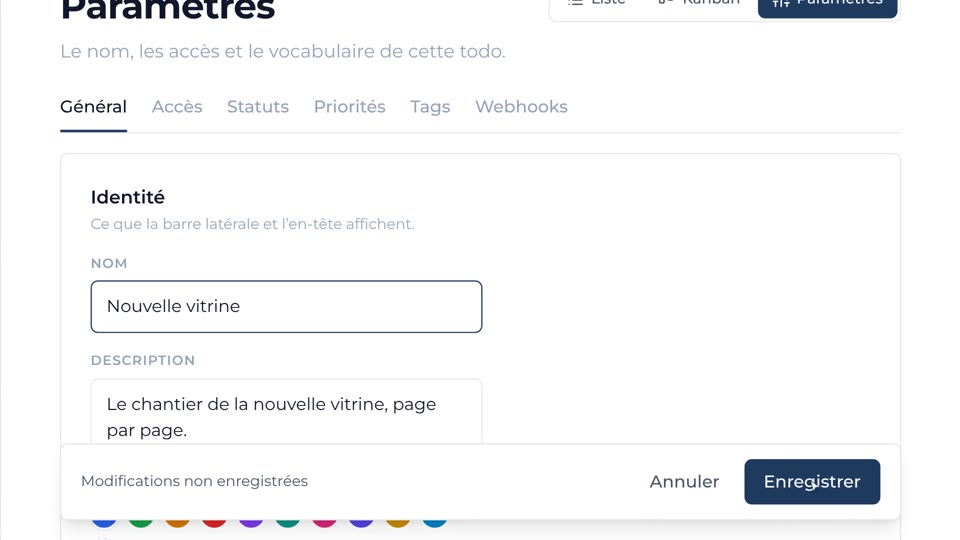
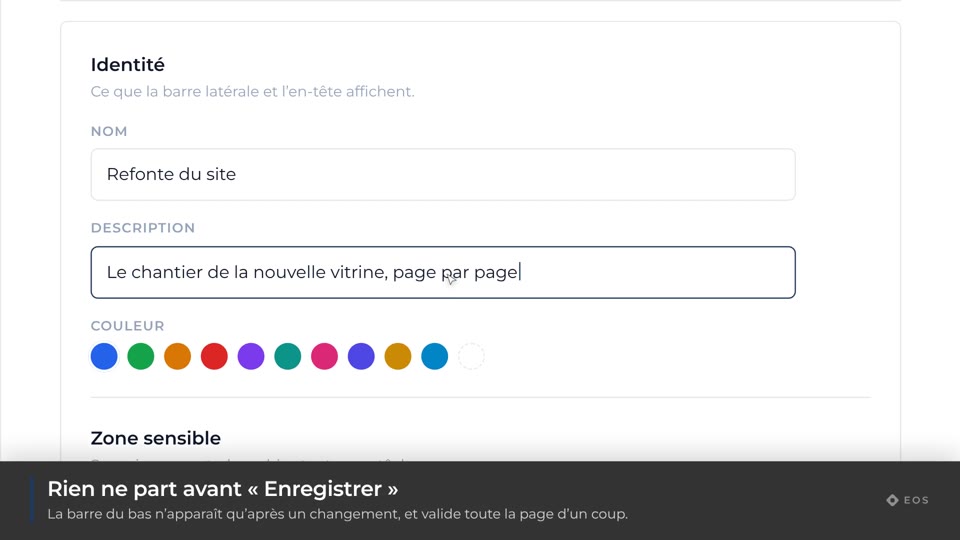
Rename a list
The name the sidebar and the header show.
Guide1 min
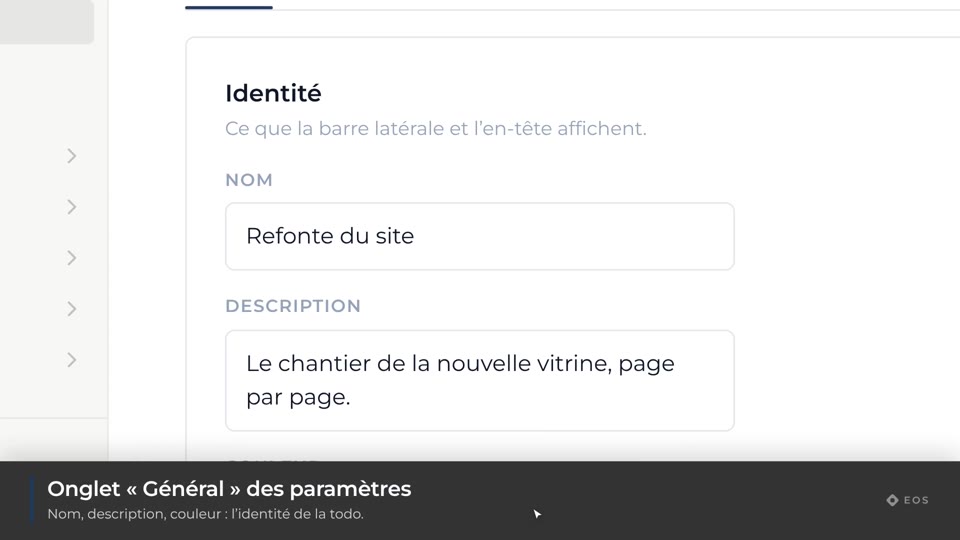
Describe a list
The line shown under the list’s title.
Guide1 min
Change a list’s colour
The dot that tells it apart from the other lists.
Guide1 min
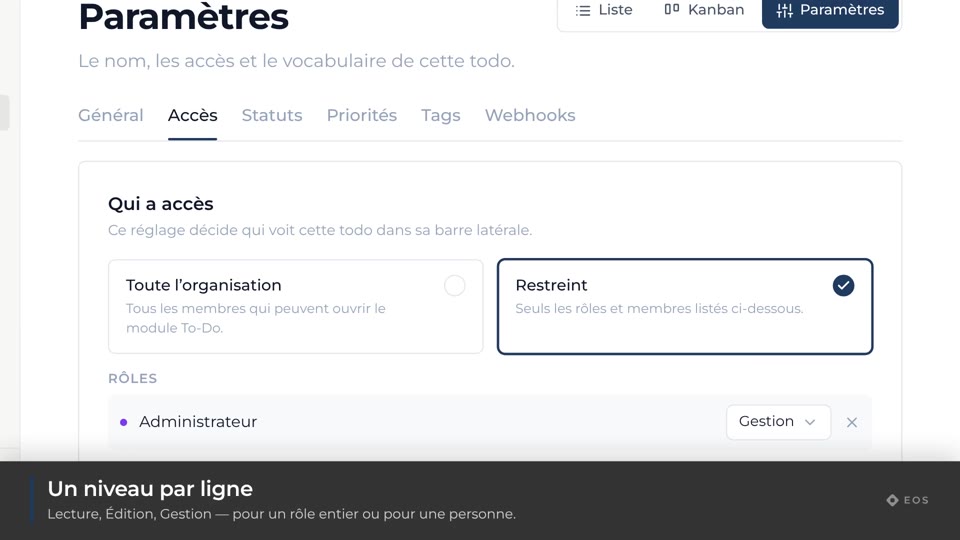
Change a list’s access
The whole organization, or only the roles and members you name.
Guide1 min
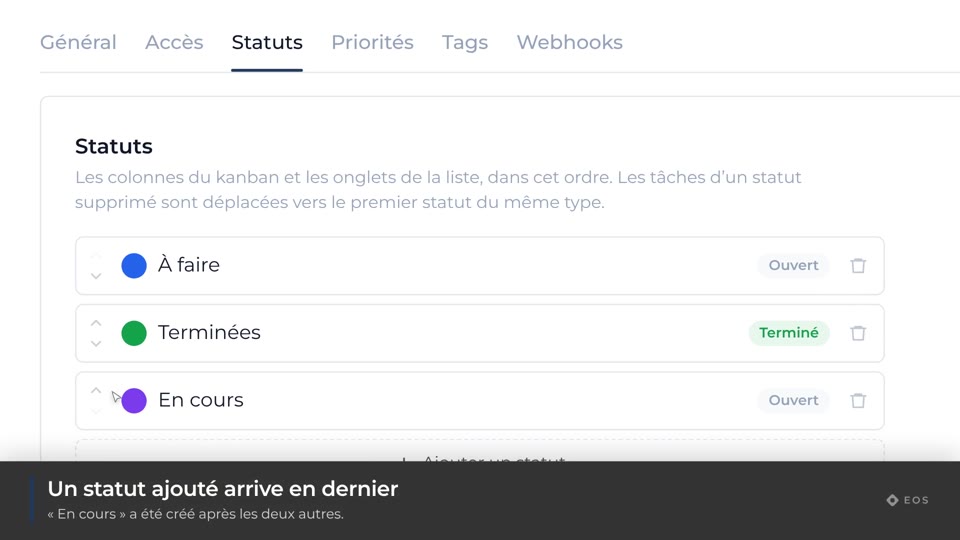
Edit the statuses
The kanban columns and the list tabs, in your own order.
Guide1 min
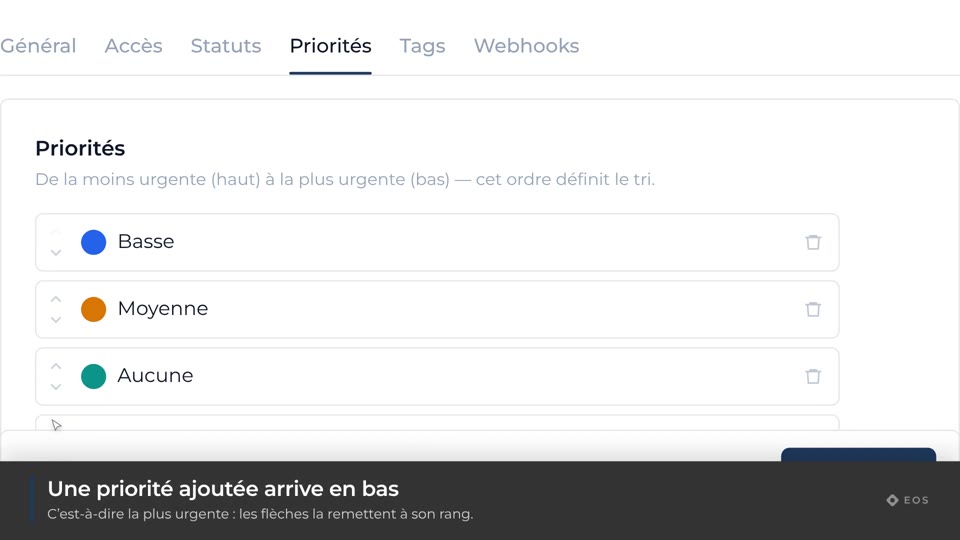
Edit the priorities
From least to most urgent — that order defines the sort.
Guide1 min
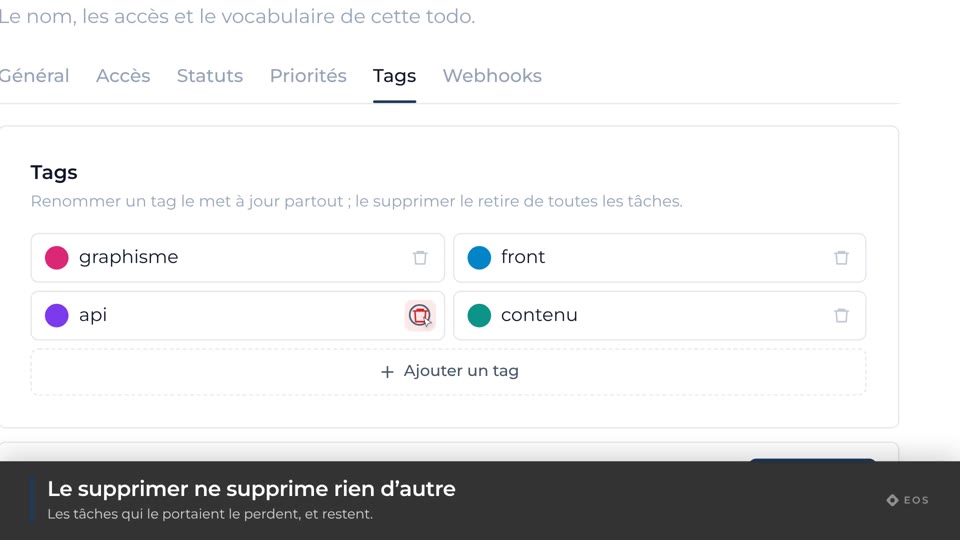
Manage tags
Renaming a tag updates it everywhere; deleting it removes it from everything.
Guide1 min
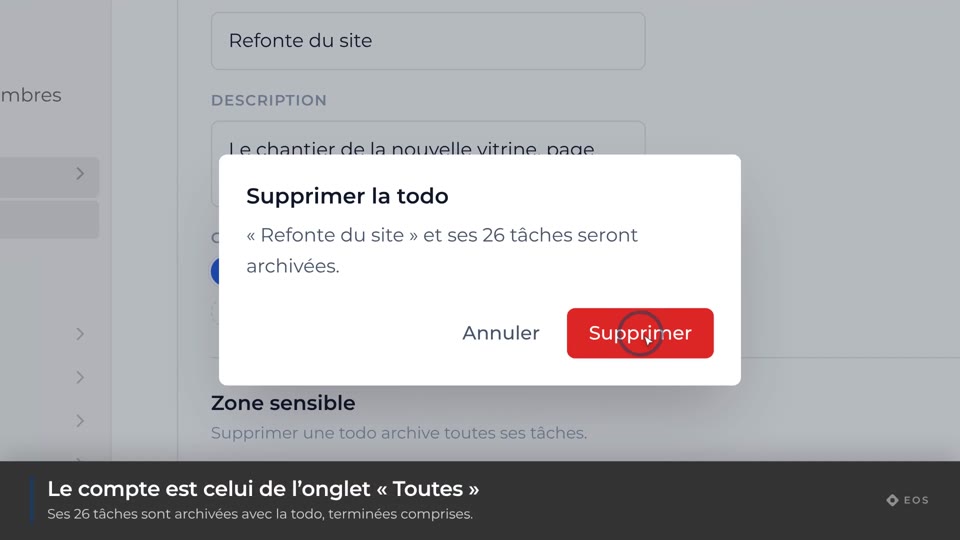
Delete a list
What becomes of the list, and of its tasks.